03 · Booking system

Bookings that fill your real tables

For independent restaurants that take bookings by phone, DM and form, then reconcile them by hand. One booking engine on your own site, tied to your floor plan.

  • 0%TableSpark commission on bookings
  • £1–£500deposit or no-show fee per booking, set per service
  • £39a month on Growth, excluding VAT
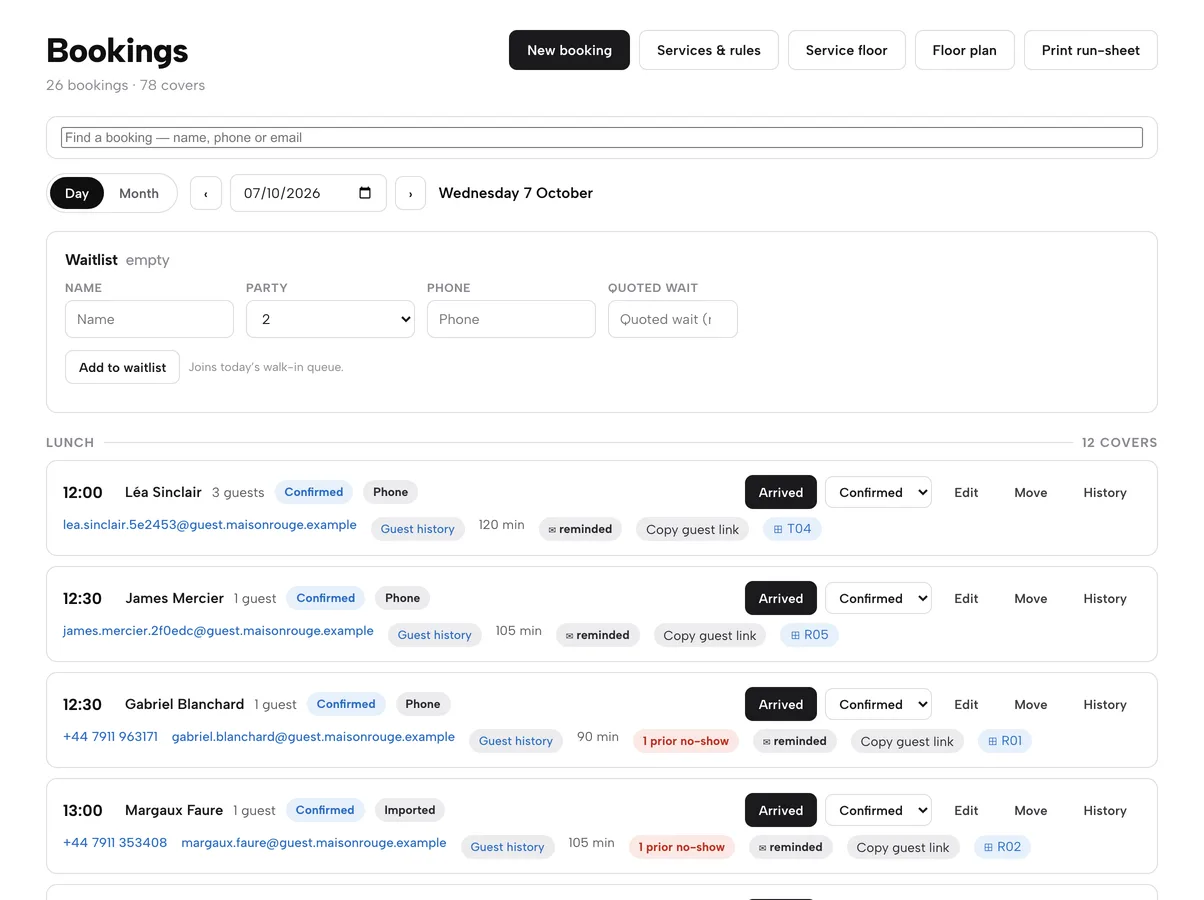
The TableSpark Bookings page for one day: waitlist form, then Lunch bookings with status, source, table and reminder badges

A full book that is not actually full

A table is promised by phone, again by message, a third time through a form. Two parties arrive for T09. A party of eight books on a night you were already stretched, then never turns up and nothing recovers the cost.

Marketplaces fill the gap and take a fee per cover for guests who already searched your name. Every booking they handle is a guest record you do not own.

Set the rules once

Services and booking rules

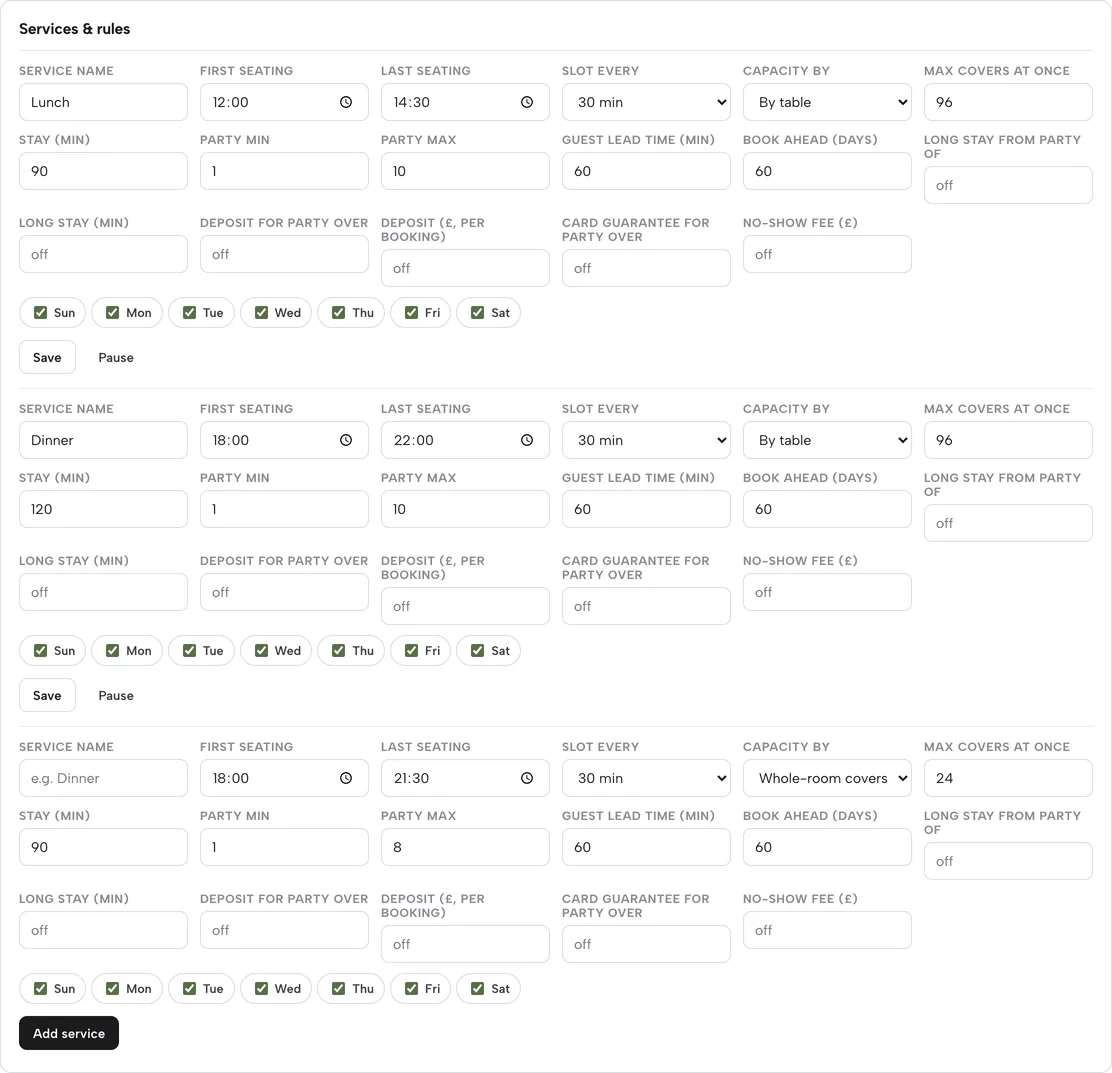
A service is a sitting such as Lunch or Dinner. It decides when guests can book, how often slots appear and how many covers fit. Opening hours say when the doors open; services say when the engine takes bookings.

  • First and last seating, slot every 15, 30 or 60 minutes, days of the week
  • Party min and max, guest lead time, book-ahead days
  • Default stay, plus a longer stay for larger parties
  • Capacity by whole room or by table; Pause and Resume a service
  • Closed-all-day or capped-covers exceptions for a single date
Set your hours and booking rules, step by step
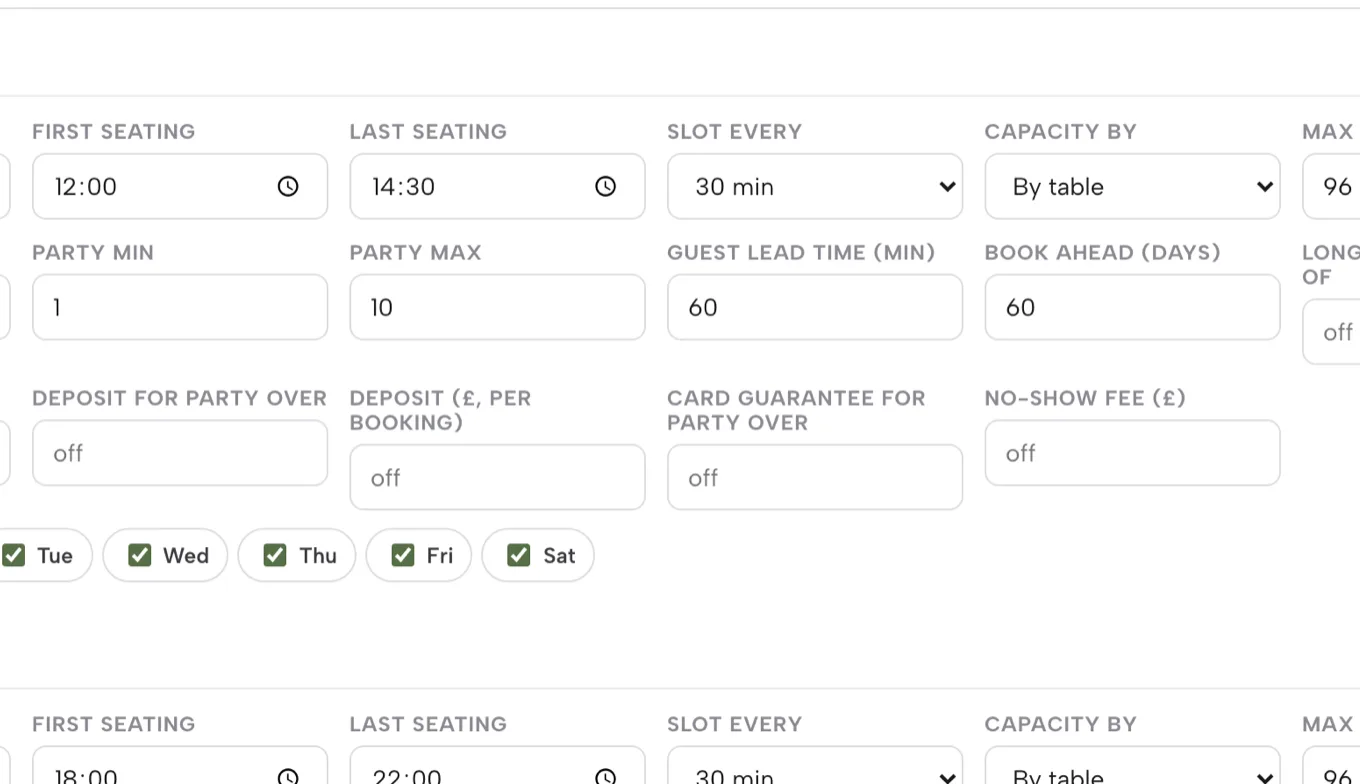
Services & rules rows for Lunch and Dinner with seating times, slot length, capacity, party size, lead time and deposit fields
Bookings, then Services & rules: every field a service carries.

What the guest sees

Live availability on your own site

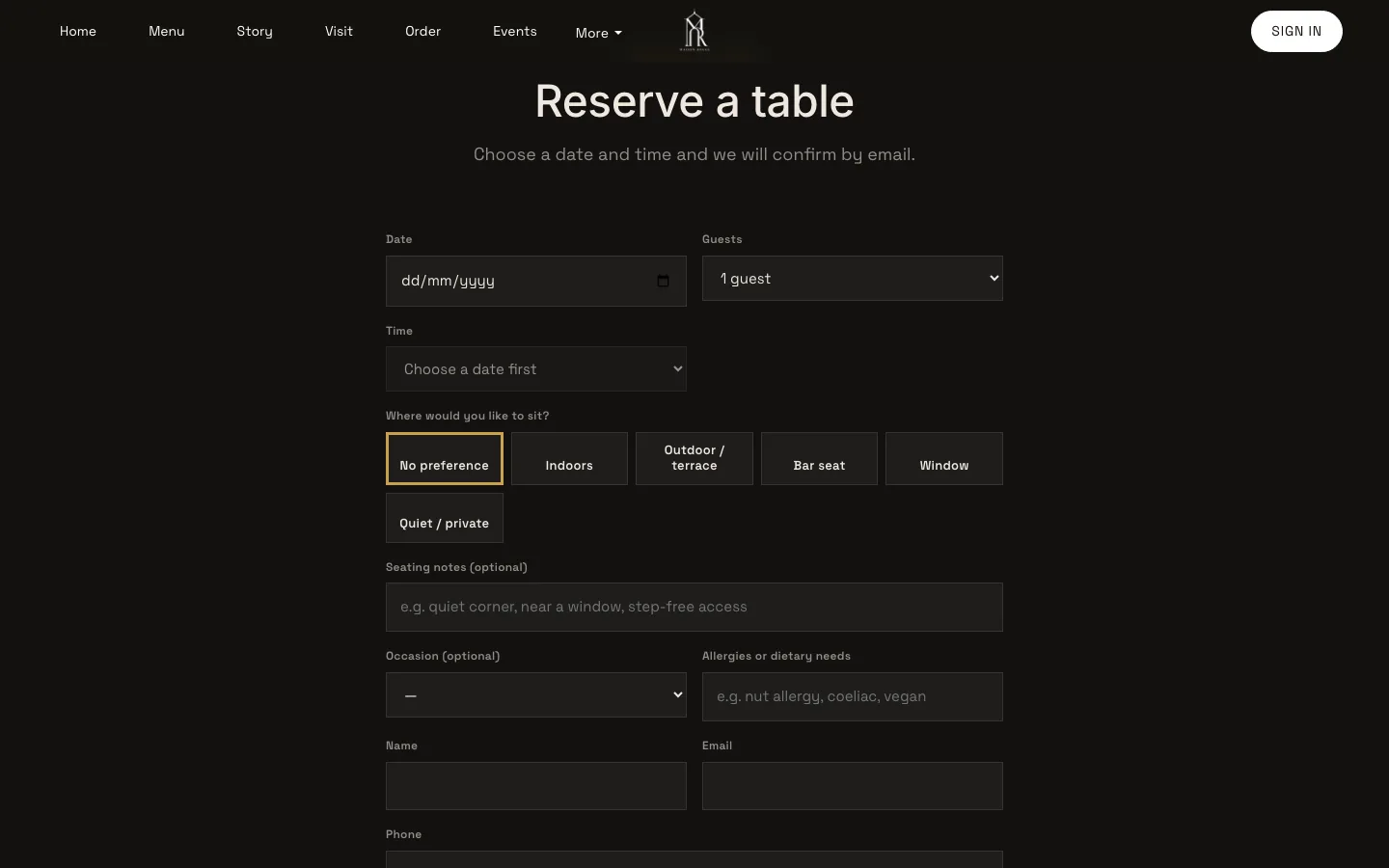
Guests pick a date, party size and seating area on your site. The time list shows only slots your rules and your real tables can honour. A full slot offers the nearest open times instead of a double-booking.

  • Date, guests, time, seating preference, occasion, allergies and notes
  • Slots follow your services, lead time and book-ahead window
  • Bookings land on your diary with no commission and no marketplace in between
  • Parties over your maximum arrive as an enquiry for you to answer
See the guest's side, step by step
A restaurant site's Reserve a table form with date, guests, time, seating choices, occasion and allergies fields

Draw the room

Floor plans and rooms

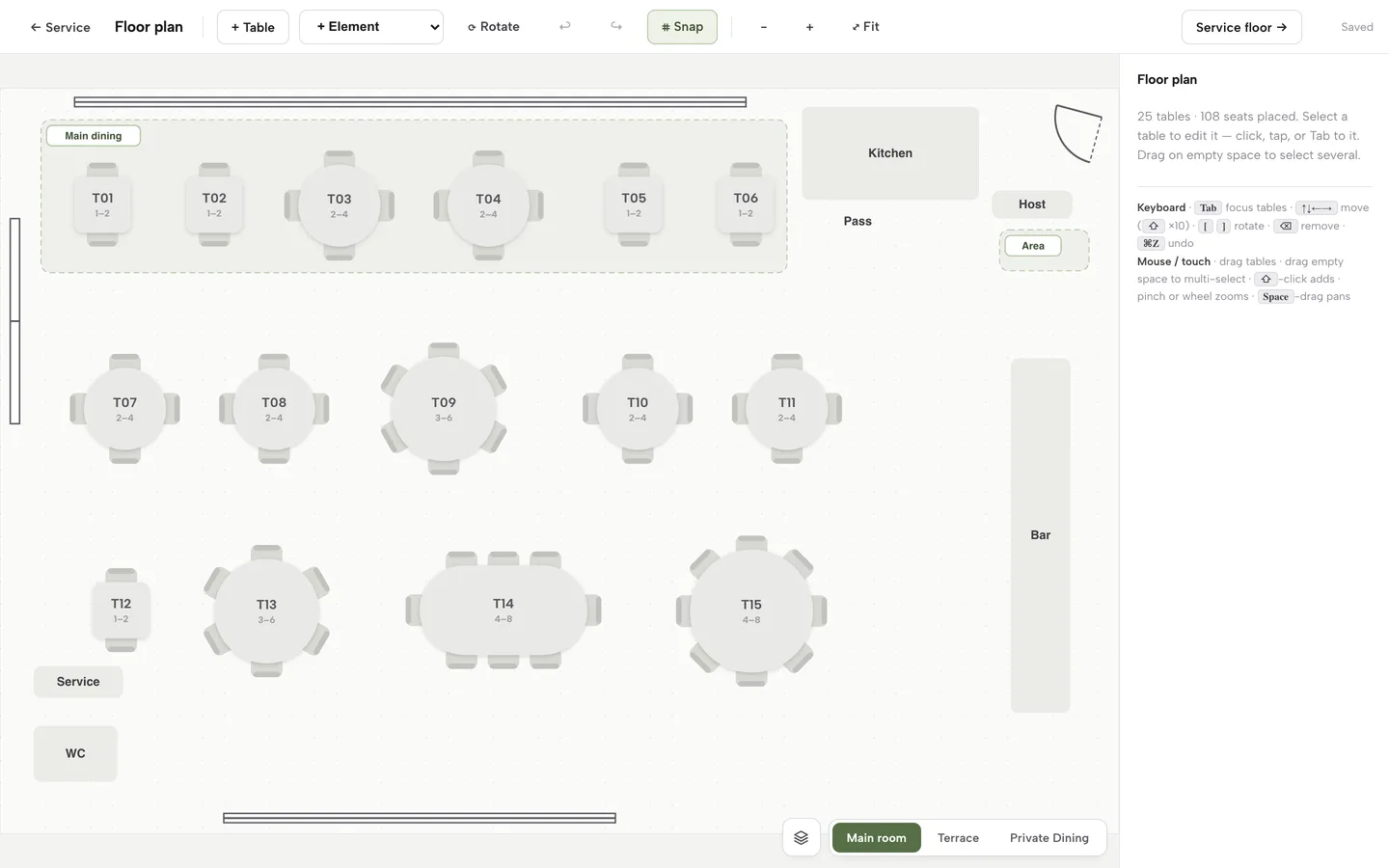
Build the plan you actually seat. Add tables, then fixtures such as the bar, kitchen, doors and windows. Each room (Main room, Terrace, Private Dining) is its own canvas.

  • + Table and + Element, rotate, snap to grid, undo and redo, zoom and fit
  • Per table: label, seats min and max, shape, size, zone and room
  • Mark a table combinable with others in its zone
  • Duplicate, retire (booking history kept) or remove a table
Build your floor plan, step by step
The floor plan editor: 25 tables and 108 seats in the Main room, with room pills for Terrace and Private Dining

Protect big tables

Deposits and card guarantees

On any service, set a party size and an amount. Larger parties pay a deposit at the moment of booking, or leave a card on file that is charged only if your team marks a no-show and confirms it.

  • Deposit: paid at booking, from £1 to £500 per booking
  • Card guarantee: card held, charged only when you confirm a no-show
  • If both are on, the deposit takes priority
  • Paid into your own connected Stripe account; Stripe's standard card-processing fees apply to online payments
  • A booking waiting on payment shows Awaiting deposit or Awaiting card
Take deposits, step by step
Service row fields: Long stay, Deposit for party over, Deposit per booking, Card guarantee for party over and No-show fee, with day toggles and Save
Deposit and card-guarantee fields sit on each service.

Instant or personal

Instant confirmation and enquiries

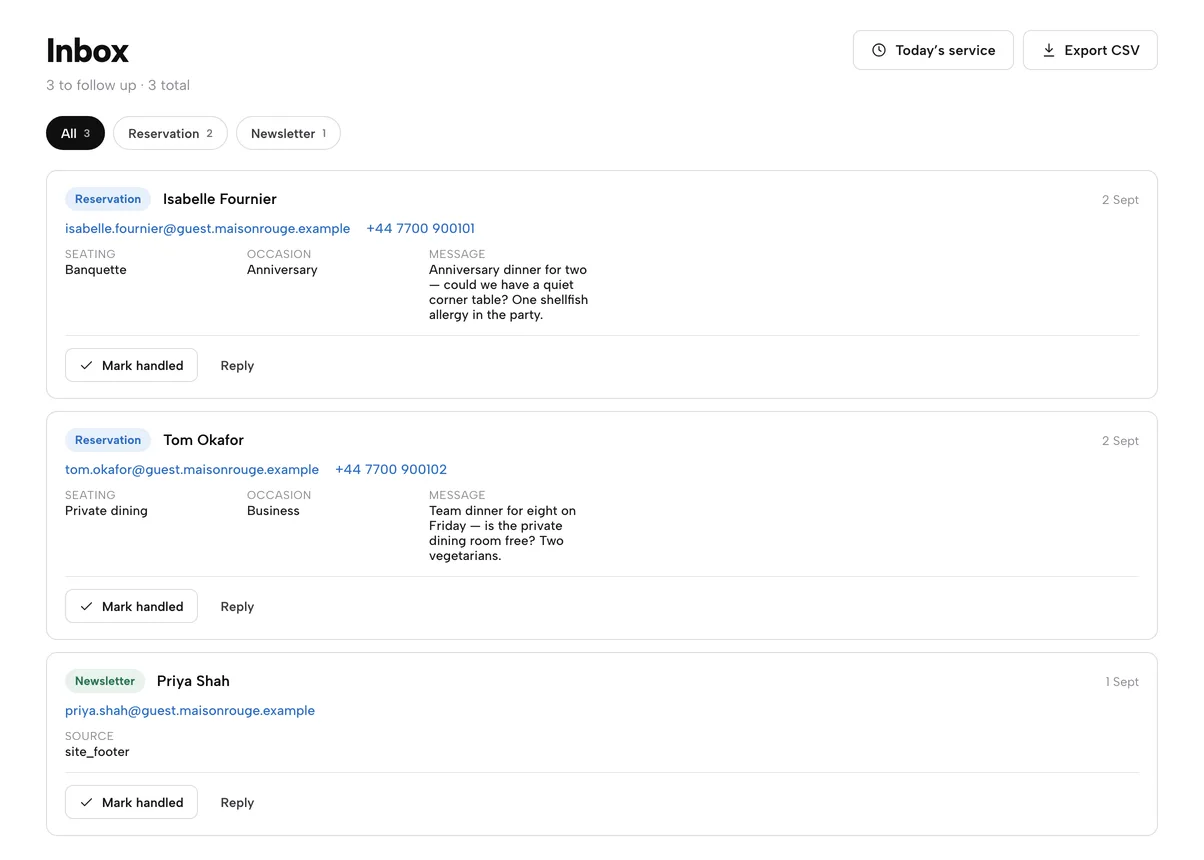
Bookings inside your rules confirm straight away. Group requests and parties over your maximum arrive in the Inbox with seating, occasion and the guest's own message. Reply from there, then add the agreed booking.

  • Reply opens a pre-addressed email; Mark handled clears it, Reopen brings it back
  • Filter by Reservation or Newsletter; Export CSV
  • Today's service jumps to a same-day board with Mark Arrived
Work your booking inbox, step by step
The Inbox with two Reservation enquiries showing seating, occasion and message, each with Mark handled and Reply

Phone and walk-in

Diary, phone bookings and table choice

Press New booking, set date, guests, time and Source (Phone or Walk-in). It runs the same availability check as your website. Leave the table on Auto or press Choose on the plan.

  • Free tables are green, booked tables grey with their times, wrong-size tables amber
  • Combine tables for a large party
  • Edit, Move, History and Copy guest link on every booking
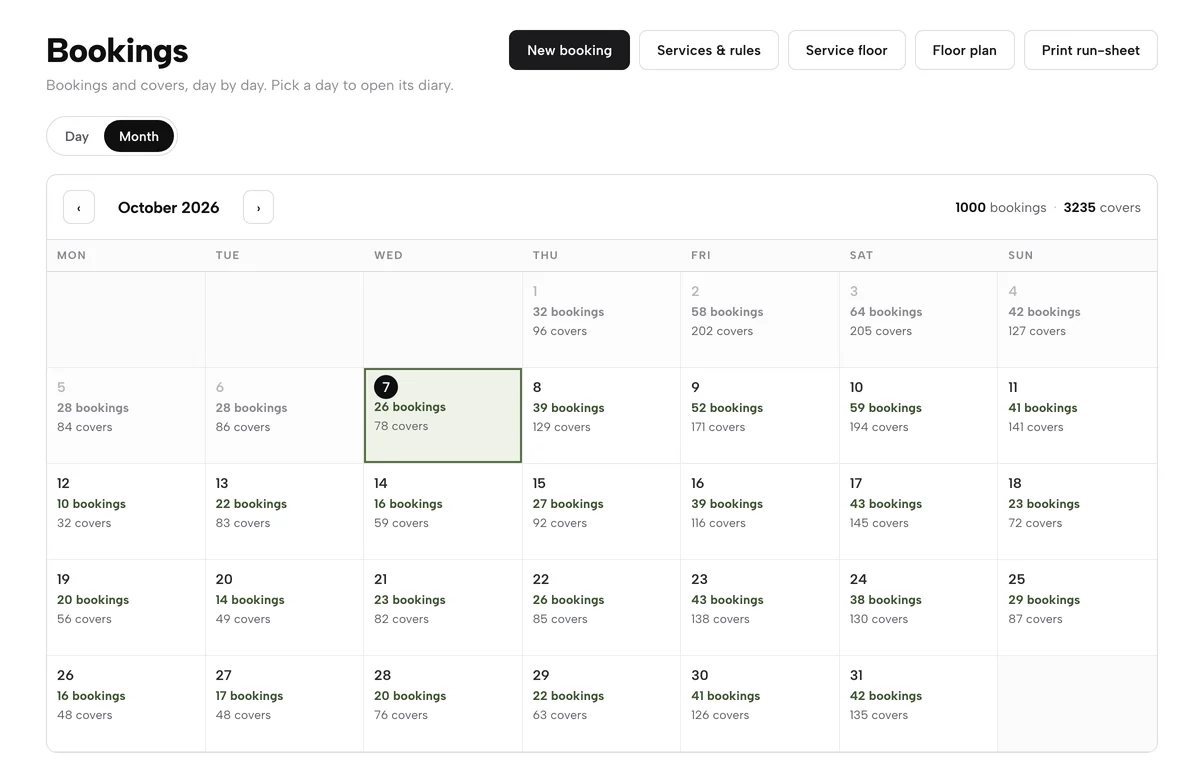
  • Arrived, Seat, Complete, No-show or Cancelled in one list; Day, Month and Print run-sheet views
Add a phone booking, step by step
The Bookings page in Month view: bookings and covers for every day of October, with New booking, Services and rules, Service floor, Floor plan and Print run-sheet

Walk-ins

Waitlist for walk-ins

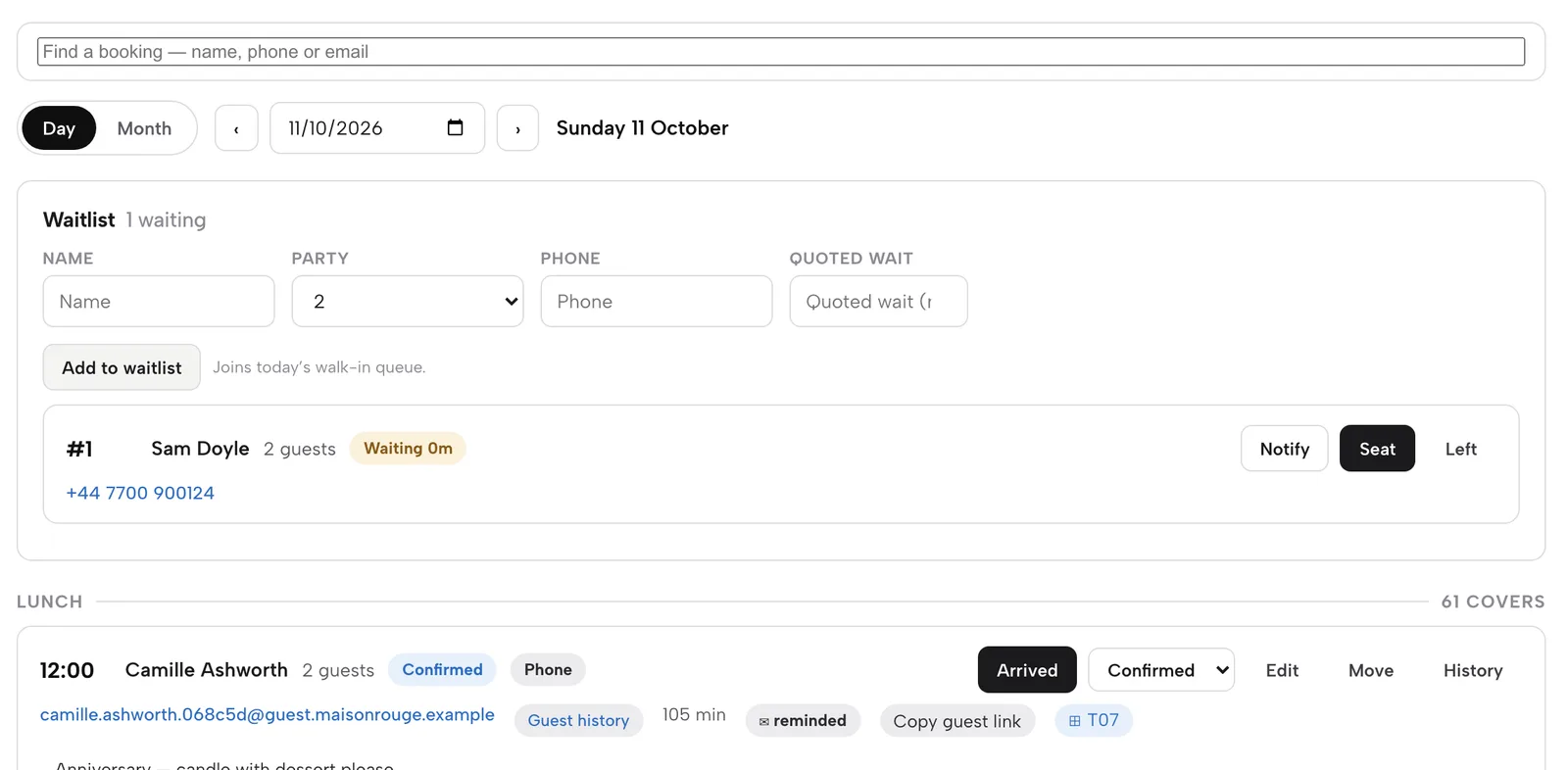
When there is no table, add the party to the waitlist with name, size, phone and a quoted wait. Guests can also join the waitlist from your site.

  • Notify emails the guest that their table is ready
  • Seat books them through the same engine
  • Left removes them if they have gone
The Waitlist with a party of two queued as number 1, with Notify, Seat and Left buttons above the first Lunch booking

Fewer phone calls

Reminders, change and cancel

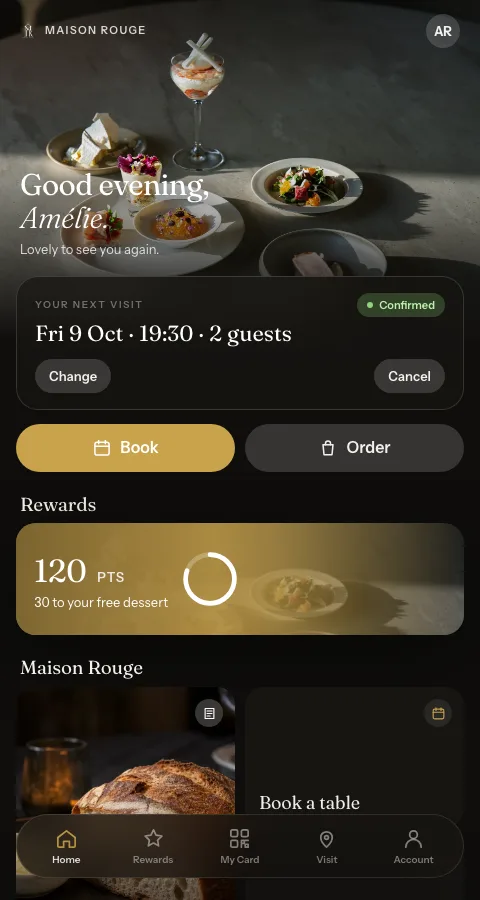
Every confirmed booking gets a confirmation and a reminder the day before, sent in your restaurant's name. Guests then change or cancel from their own account.

  • Change checks the new date and time against live availability
  • Cancel needs a second tap, so nobody cancels by accident
  • A deposit booking asks the guest to call you instead
  • Every change shows in your diary with its history
See what guests see, step by step
A guest's account home showing Your next visit with Change and Cancel buttons

Be bookable from search

Reserve with Google booking link

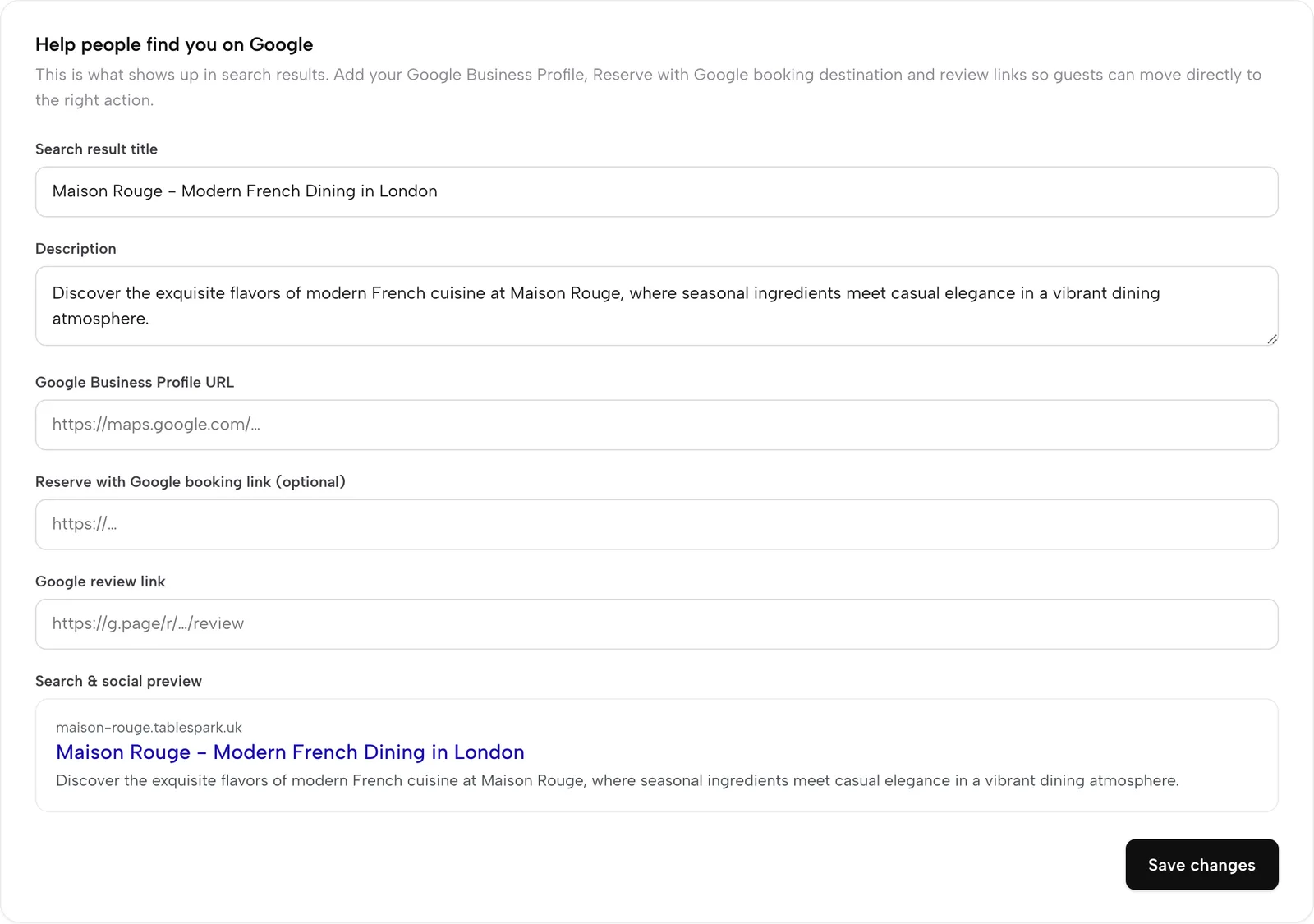
In Settings, SEO, paste your booking link. It becomes the booking destination your guests reach from Google, sending them to your own booking page and your own diary.

  • Add your Google Business Profile and review links beside it
  • Guests book on your site at 0% TableSpark commission
  • A booking-link connection: the guest completes the booking on your page
Settings, Help people find you on Google, with the Reserve with Google booking link field

Watch it

Watch a booking go from enquiry to seated

Every click recorded on the live TableSpark app.

Watch on YouTube

How it connects

Where bookings go next

A booking is the start of a guest record and the first step of service.

Plan & price

Bookings come with Growth

Growth at £39 a month, excluding VAT, carries the booking engine. Full, at £69 a month excluding VAT, adds online ordering. Starter keeps enquiry forms and the Inbox.

Prices exclude VAT. 0% TableSpark commission on the bookings and orders your plan includes. Stripe’s standard card-processing fees apply to online payments. Compare every plan.

Questions owners ask

Do you charge per booking or per cover?

No. Bookings carry 0% TableSpark commission. You pay a flat monthly plan, excluding VAT. Stripe's standard card-processing fees apply to online deposit payments.

Can I take phone and walk-in bookings too?

Yes. New booking takes phone and walk-in sources and checks the same availability, so you never double-book a table.

What is the difference between a deposit and a card guarantee?

A deposit is paid at booking. A card guarantee only holds the card and charges a no-show fee if you confirm one. If both are on, the deposit applies.

Do Google bookings arrive in my Inbox automatically?

The Google link is a booking destination: guests complete the booking on your own booking page, where it joins your diary like any other.

Where is guest data kept?

In your restaurant's TableSpark account, visible in your Inbox and guest list, with CSV export whenever you want it.

Can I take group bookings with pre-orders and deposits?

Yes, on Growth and Full. Group bookings with pre-orders and deposits: set the party size where a booking becomes a group, and each one arrives as an enquiry you confirm. Guests choose dishes ahead from your live menu or a set-menu section, you can request a per-guest deposit paid straight to your own Stripe account, and one automatic reminder goes out before the deadline. Pre-orders show on the booking and on the day's run sheet. Stripe's standard card-processing fees apply to deposit payments.

Does TableSpark have a waitlist?

Yes, on Growth and Full. Add a walk-in or a guest for a fully booked night to the waitlist from the bookings screen, and one tap sends them a "your table is ready" email when their table comes free.

Fill your tables, keep your guests

Build free, and pay only when you publish.