04 · Online ordering

Online ordering on your own site, at 0% TableSpark commission

Collection, delivery and table-QR orders through the menu you already built. Guests order on your website, the ticket lands on your Orders screen, and the money goes to your own Stripe account.

  • 0%TableSpark commission on every order
  • 3ways to order: dine-in, collection, delivery
  • 2ways to pay: card online or at the restaurant
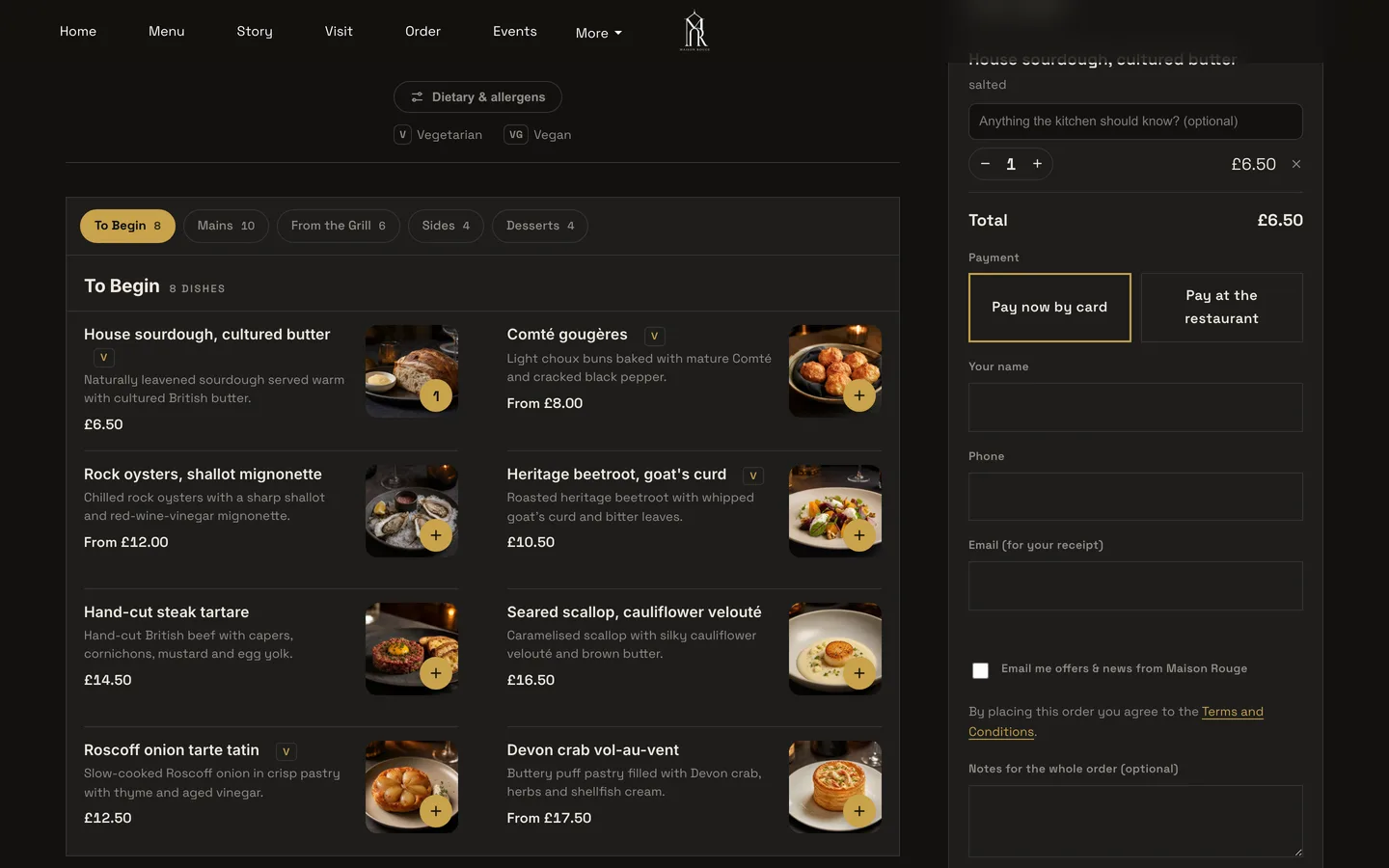
The Order page on a restaurant site: menu sections with dish photos, and the Your order basket with Pay now by card and Pay at the restaurant

Every order through a marketplace is a sale you share

A busy Friday brings a screen full of marketplace orders, and each one arrives with a percentage taken off the sale and a customer who now belongs to someone else. The busier you get, the more it costs.

Your own website should take those orders instead: your menu, your prices, your customer, and the money in your own account.

Set up in minutes

Switch ordering on in the Builder

Add the Order from our menu block to any page. It sells from the menu you already keep, so there is no second menu to maintain.

  • Switches for Offer dine-in, Offer collection and Offer delivery
  • Five layouts: Classic list, Photo tiles, Chip bar, Delivery app, Side categories
  • Delivery fee: one fixed fee, or postcode-radius distance tiers
  • Minimum order, collection cut-off before closing, and a ready-time note guests see after ordering
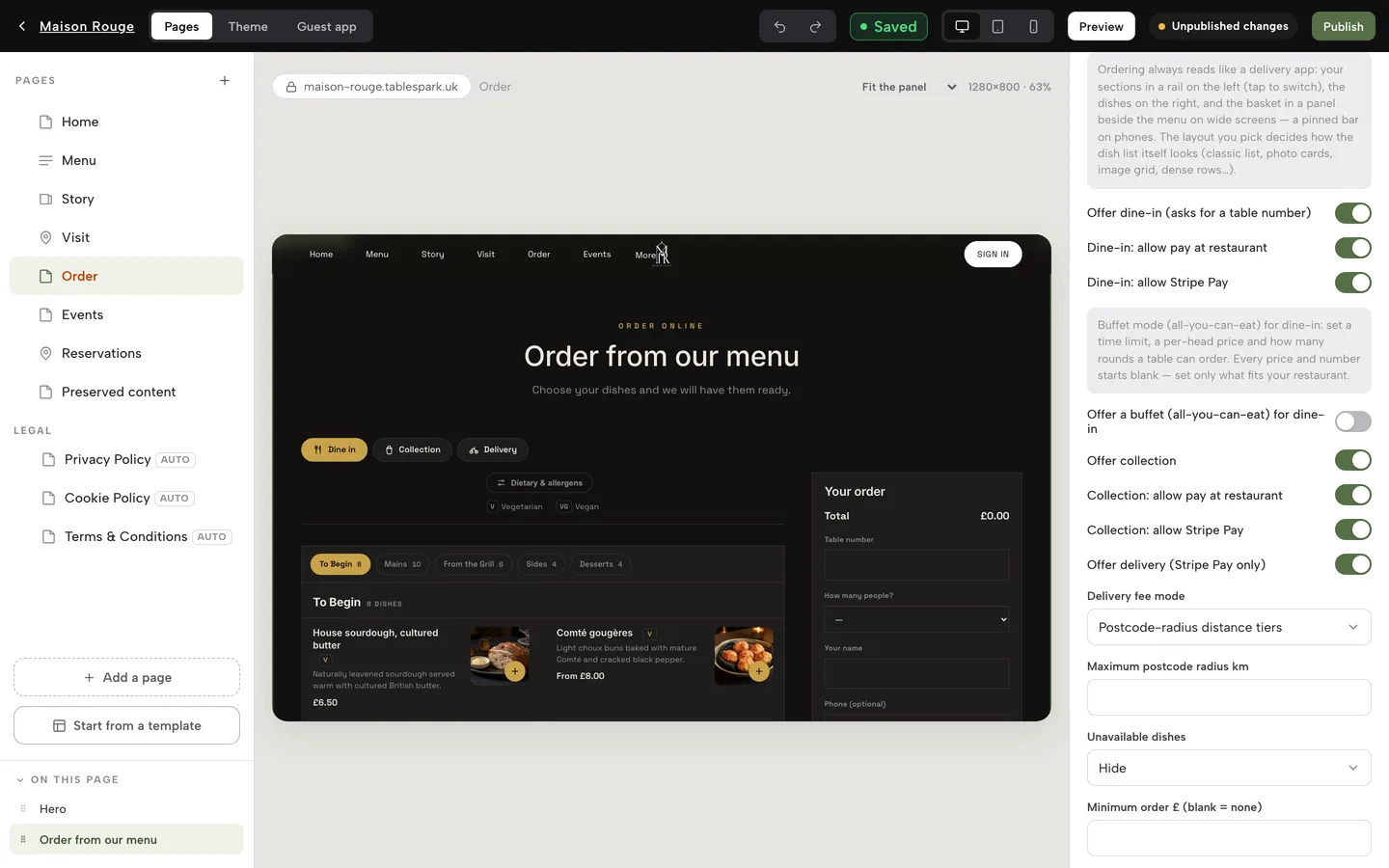
Switch on ordering, step by step
The Builder with the Order page open: the Order from our menu block's switches for dine-in, collection and delivery, delivery fee mode, minimum order and sold-out dish setting

What guests see

An order page that works like a delivery app

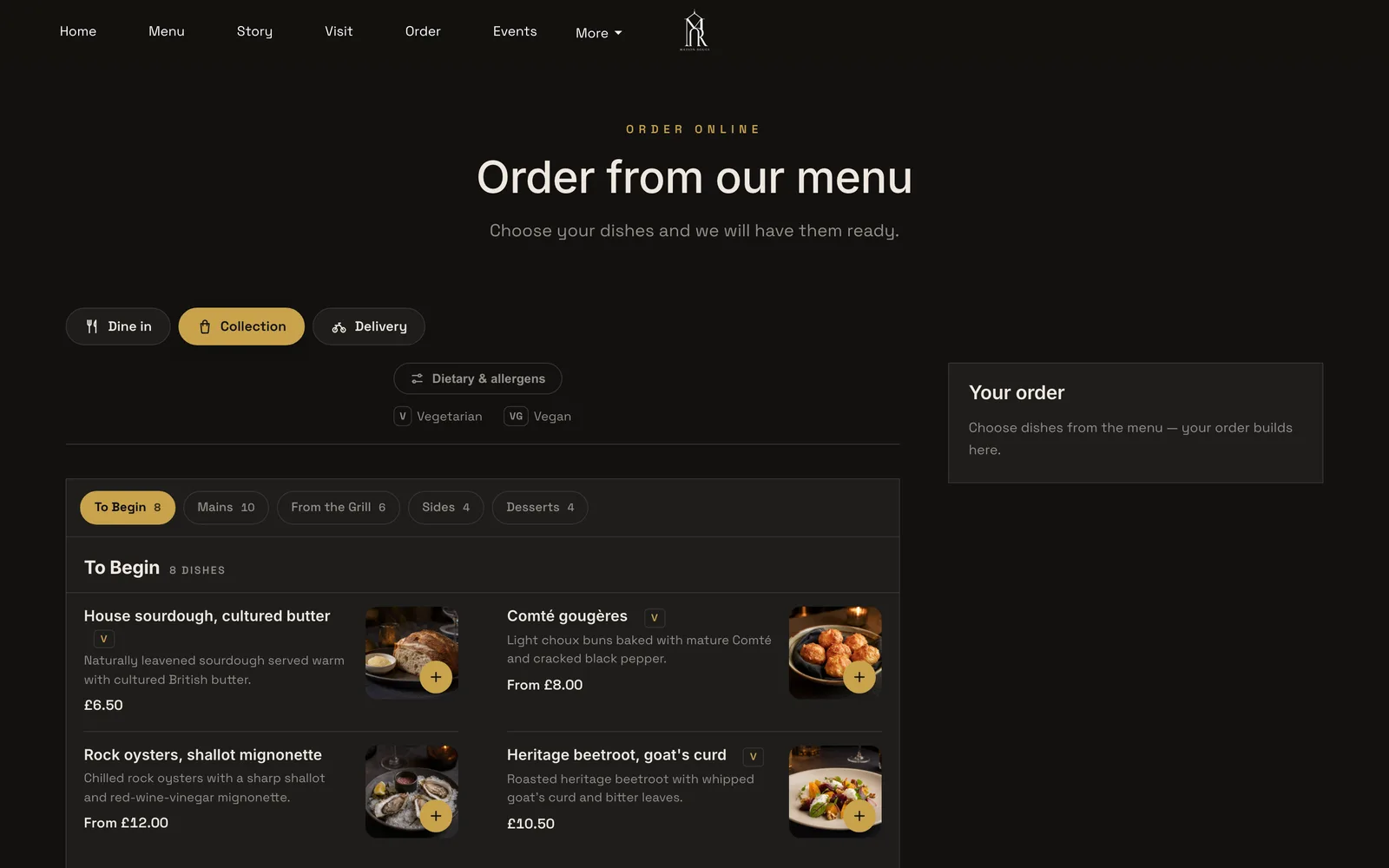
Guests choose Dine in, Collection or Delivery first, then order from your menu. It reads well on a phone, and a pinned basket stays in view.

  • Sections as tabs with dish counts, photos and vegetarian and vegan chips
  • A Dietary & allergens filter above the menu
  • A running Your order basket with quantity steppers
  • Collection asks for name, phone and email; delivery asks for postcode and address
The public Order page in Collection mode: Dine in, Collection and Delivery buttons, a dietary and allergens filter, category tabs with dish counts, dishes with photos and an empty Your order basket

Get the order right

Dish options, extras and kitchen notes

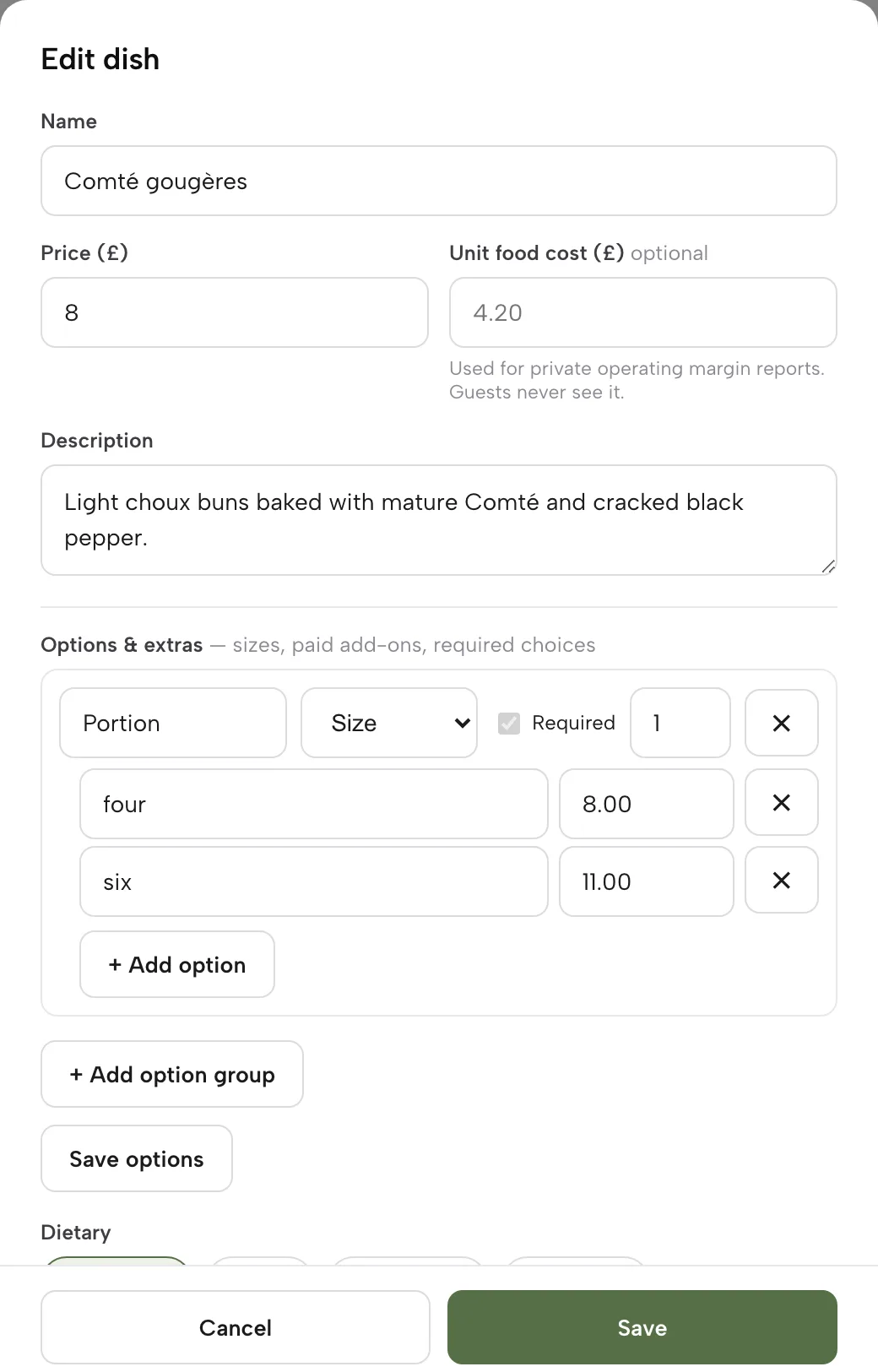
Give any dish sizes, paid extras or required choices. Guests pick them in a dish sheet before the dish can be added, so the ticket arrives complete.

  • Option groups: Size or extras, required or optional, each with its own price
  • A note field on each dish, such as "no onions"
  • A note for the whole order on the basket
  • Plain dishes go straight into the basket with one tap
Edit a dish, step by step
The Edit dish panel with Options & extras: a required Portion size group with four at 8.00 and six at 11.00, and Add option and Add option group buttons

Stop selling what you lack

Sold out, and the right dishes on the right channel

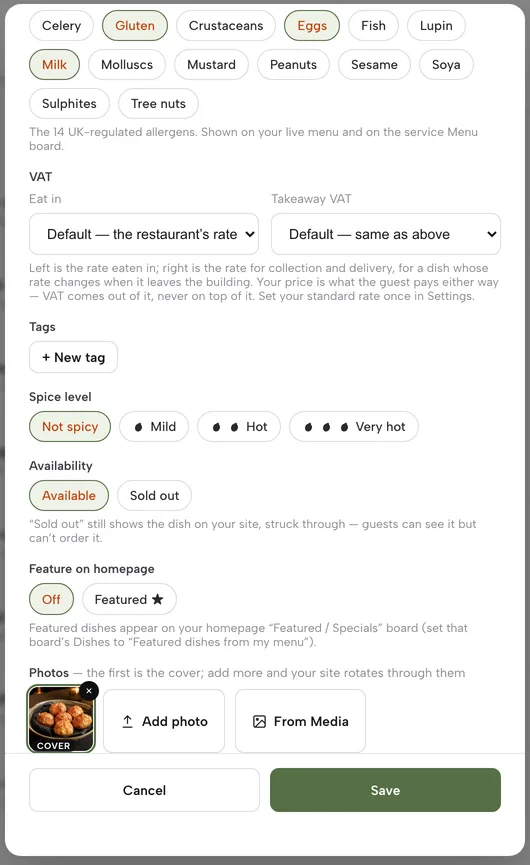
When the kitchen runs out, mark the dish Sold out. It stays on your site, struck through, and guests can no longer order it. Choose whether sold-out dishes grey out or hide.

  • One switch per dish, in the dish editor
  • Set per dish whether it is offered for dine-in, collection or delivery
  • Flag age-restricted dishes
  • Set eat-in and takeaway VAT rates per dish
The Edit dish panel scrolled to Availability, with the Available and Sold out choices and the note that a sold-out dish stays on the site struck through

Order from the table

Table QR ordering

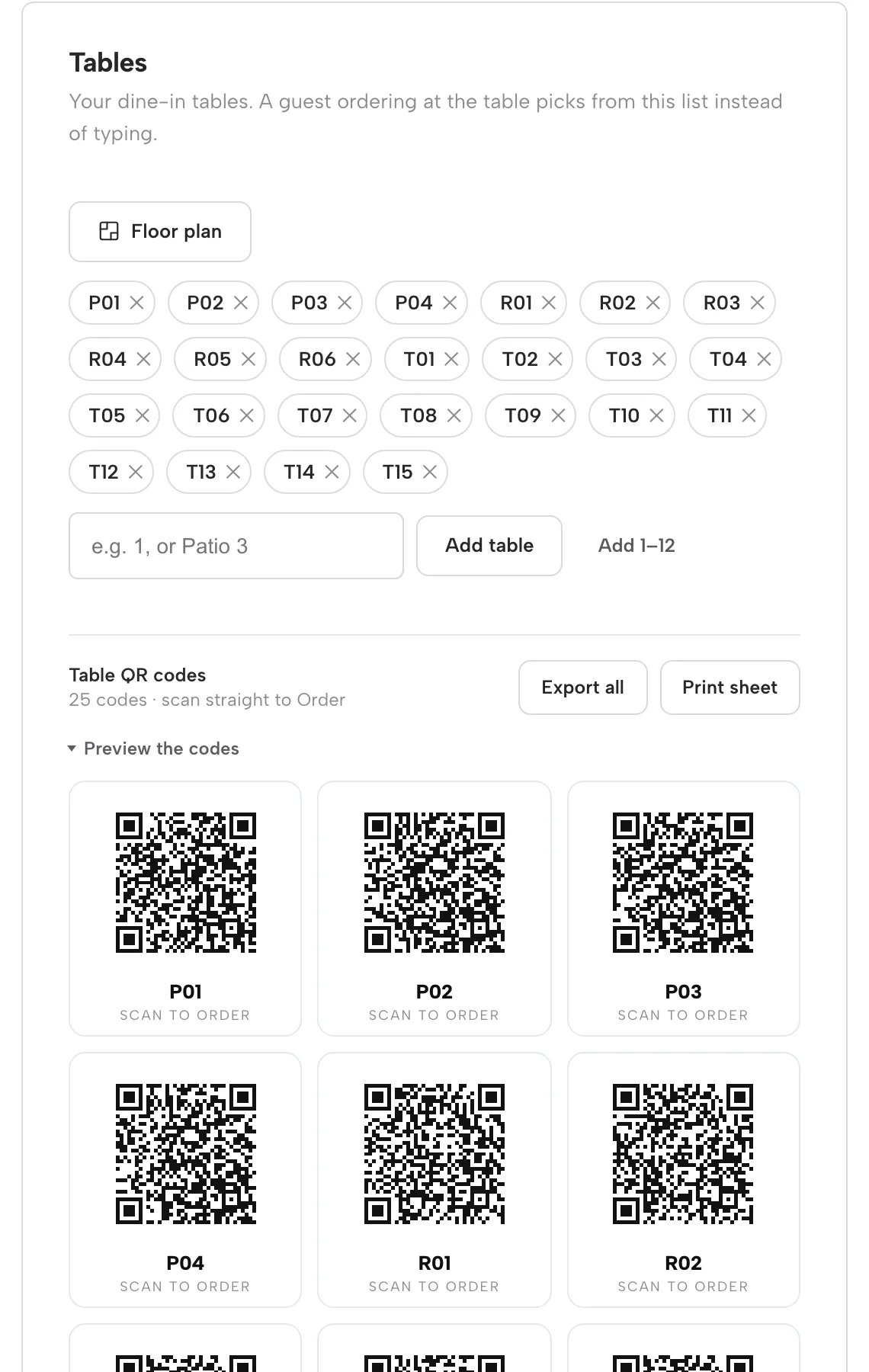
Add your tables once, then print a QR code for each. A guest scans, lands on your ordering page already locked to dine-in and that table, and orders and pays from their phone.

  • Preview the codes, then Export all or Print sheet
  • Each code is labelled with its table and Scan to order
  • Dine-in orders arrive with the table and party size on the ticket
  • No app to download
Print your table codes, step by step
The Dashboard Tables card: a list of table chips, the Table QR codes block with Export all and Print sheet, and a grid of QR codes labelled Scan to order

All you can eat

Buffet mode for dine-in

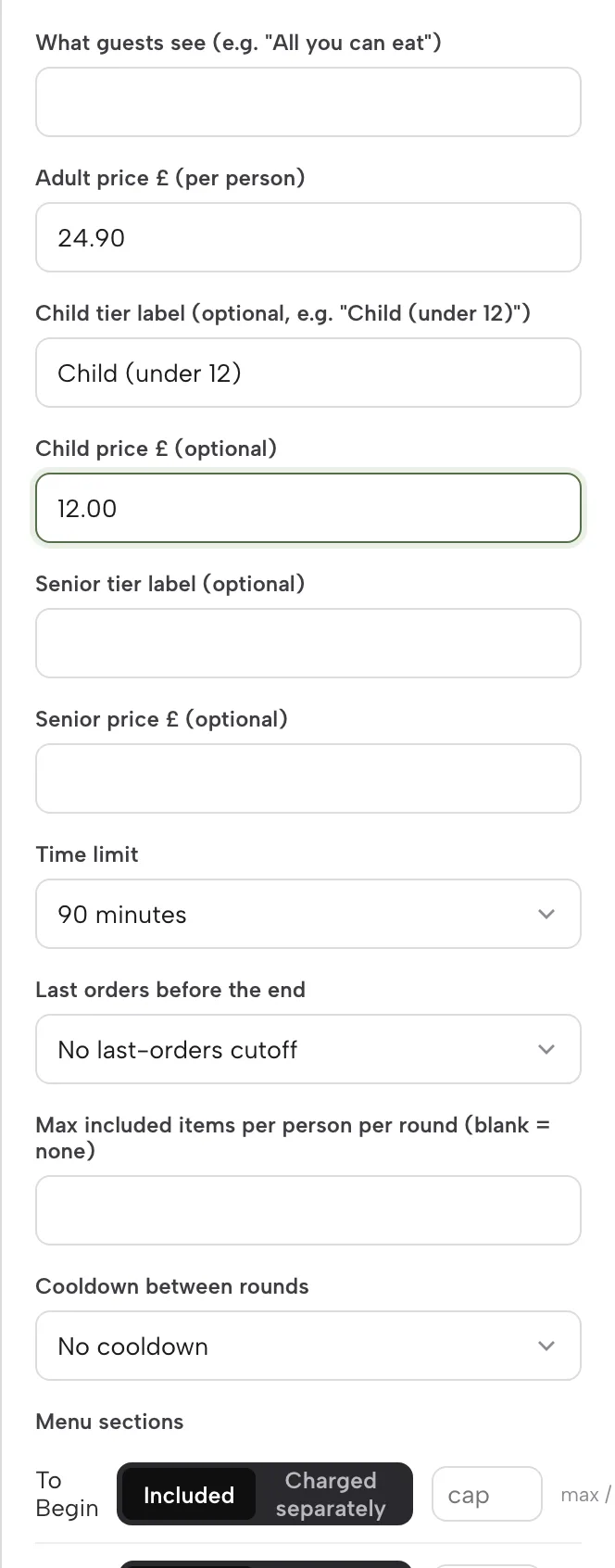
Switch on Offer a buffet and set the rules in numbers you choose: adult, child and senior prices, a time limit, last orders and a pause between rounds. Tables order in rounds and are billed once.

  • Per-person price tiers and a time limit up to 150 minutes
  • A cap per person per round, and a cooldown of 3 to 15 minutes
  • Mark any section, or a single dish, as Charged separately
  • Every round is its own ticket, labelled with the round number
Run a buffet, step by step
The buffet settings in the Builder: adult price 24.90, a child tier at 12.00, a 90 minute time limit, last-orders and cooldown choices, and each menu section set to Included or Charged separately

Your money, your bank

Pay by card or at the restaurant, at 0% TableSpark commission

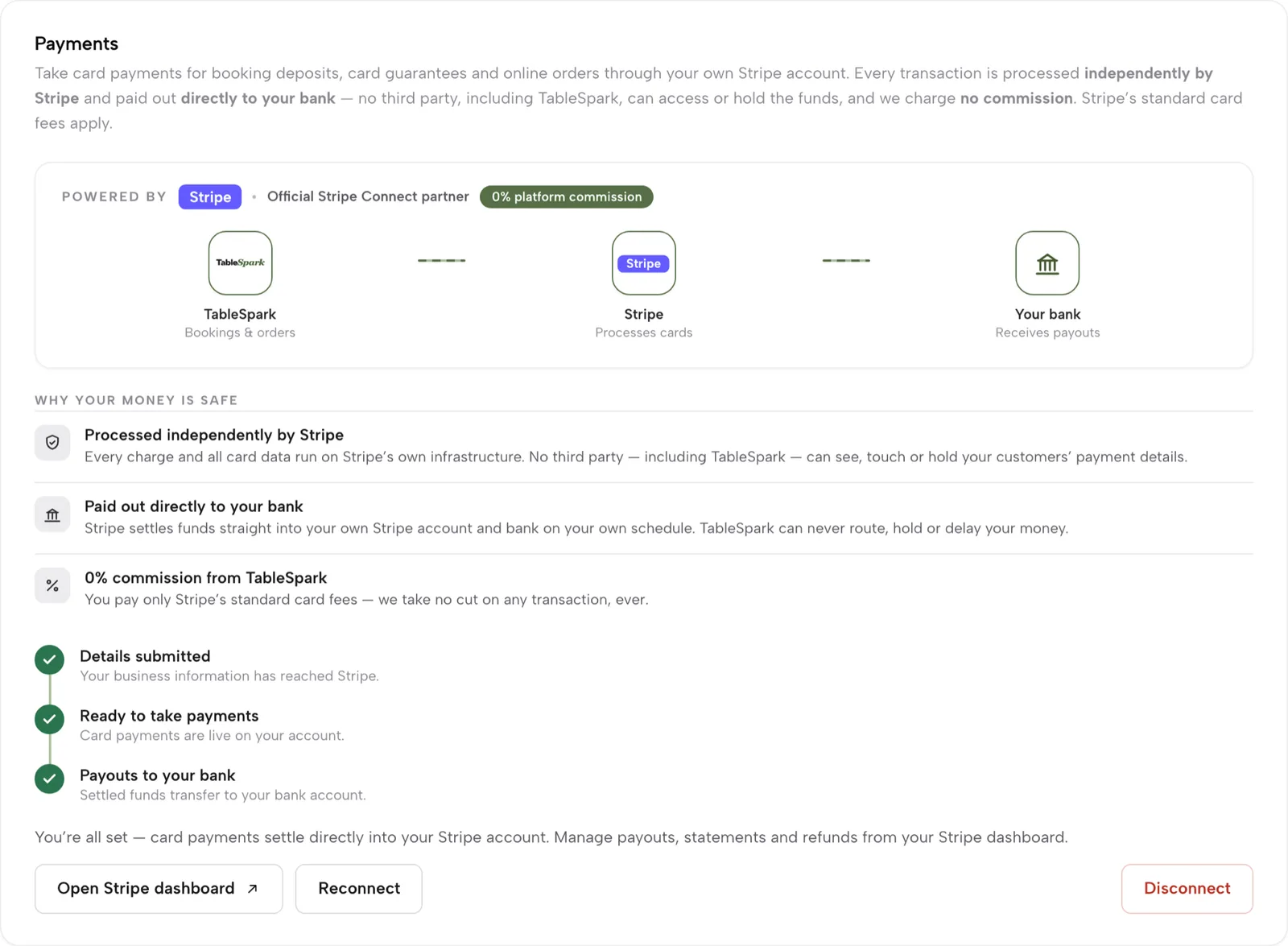
Dine-in and collection work straight away with pay at the restaurant. Connect your own Stripe account once and guests can Pay now by card, and delivery switches on. Card payments settle into your bank. 0% TableSpark commission.

  • Per channel: card, at the restaurant, or both
  • Delivery is card only, so there is nothing to collect at the door
  • Stripe's standard card-processing fees apply to online payments
  • Pay-at-restaurant orders get Mark paid or a card-reader charge
Connect Stripe, step by step
Settings, Payments: Powered by Stripe, a 0% platform commission badge, a TableSpark to Stripe to your bank diagram, and ticks for details submitted, ready to take payments and payouts to your bank

Run the pass

Orders land on your screen, with a chime

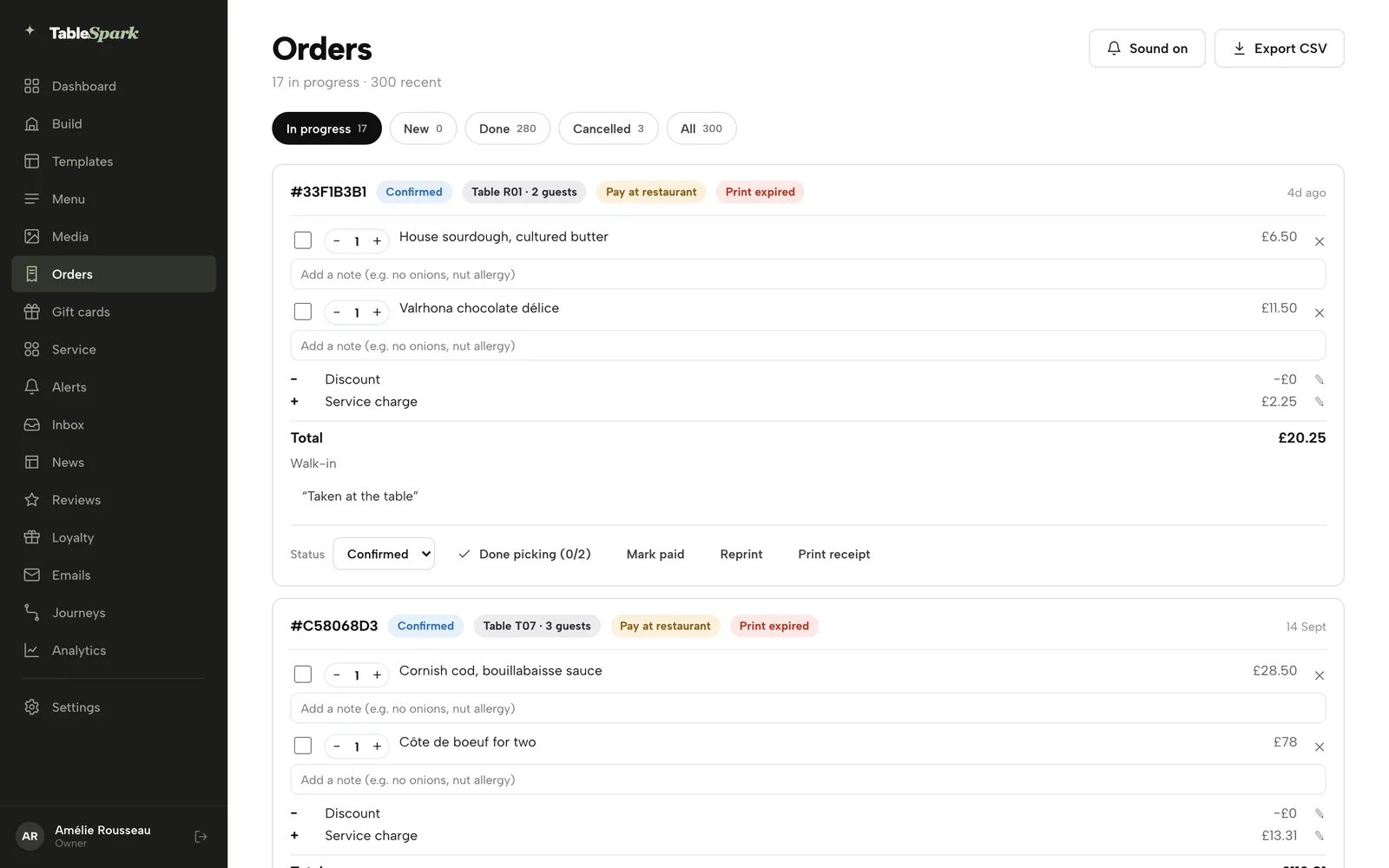
Open Orders and every ticket is a card: reference, status, table or address, payment chip, dishes and notes. The list refreshes itself and chimes when a new order arrives. Guests see their own live status tracker.

  • Tabs: In progress, New, Done, Cancelled, All, each with a count
  • Status moves from New to Confirmed, Preparing, Ready and Done
  • Done picking ticks every dish and sends the order to Ready
  • Reprint a kitchen ticket or print a guest receipt, and Export CSV
Work the Orders screen, step by step
The Orders screen: In progress, New, Done, Cancelled and All tabs, a Sound on switch, Export CSV, and order cards with status and payment chips, line items and a Status menu with Done picking and Mark paid

When it goes wrong

Full and partial refunds

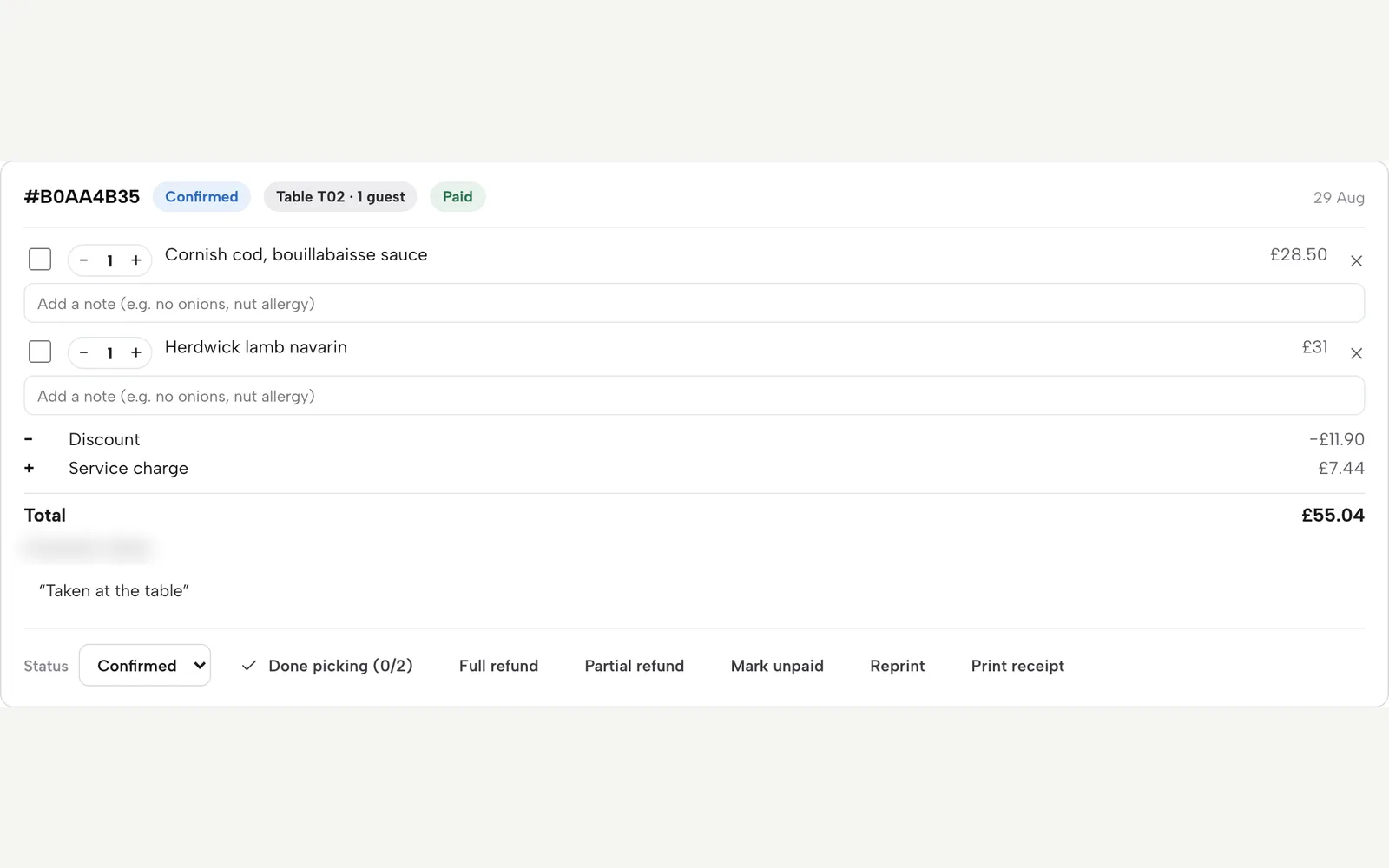
A paid order carries Full refund and Partial refund. Full refund asks you to confirm before it fires. Card orders refund through Stripe; pay-at-restaurant orders record the refund on the order.

  • Cancel a paid order and the guest is refunded in full
  • Partial refunds take any amount up to what is left
  • A Refunded so far line shows under the total
  • Refunds are owner-only, checked on the server
A paid order card with a Paid chip, two dishes, a discount and service charge, and the Full refund, Partial refund, Mark unpaid, Reprint and Print receipt buttons

Watch it

Watch an order go from phone to kitchen

Every click recorded on the live app, from switching the block on to refunding a paid order.

Watch on YouTube

How it connects

Orders feed the rest of the restaurant

An order is the start of a record, a ticket and a payment. The next parts of the flow pick it up from here.

Plan & price

Online ordering comes with Full

Full is £69 a month excluding VAT, or £690 a year excluding VAT. The sold-out switch is on every plan, and building is free until you publish.

Prices exclude VAT. 0% TableSpark commission on the bookings and orders your plan includes. Stripe’s standard card-processing fees apply to online payments. Compare every plan.

Questions owners ask

Do I pay commission on online orders?

No. TableSpark commission is 0%. You pay your flat monthly plan, and Stripe's standard card-processing fees apply to online payments.

Can I take orders without connecting Stripe?

Yes. Dine-in and collection work straight away with pay at the restaurant. Connect Stripe when you want guests to pay by card up front, or to offer delivery.

Where does the money go?

Card payments are processed by Stripe and settle into your own Stripe account and bank. TableSpark does not hold the funds.

Will I hear about a new order?

Yes. The Orders screen refreshes itself, chimes on new orders, and shows a count on the New tab. Guests see a live status tracker on their side.

Can I stop one dish selling?

Yes. Mark it Sold out and it stays on your site, struck through, and stops being ordered. You can also offer a dish on some channels only.

Can I take orders on the website I already have?

Yes, on Full. Paste the ordering widget from Settings, Website widgets into your current WordPress, Squarespace or Wix site, and orders arrive on the same Orders screen and kitchen tickets at 0% TableSpark commission. Stripe's standard card-processing fees apply to online payments.

Take your first order on your own site

Build free, add the ordering block and publish when you are ready.